
Setting Up Your Pipelines
A specialized guide on configuring your first sales, recruitment, or support pipelines.
Once you’ve completed the Getting Started guide, it’s time to build your first CRM pipeline. A pipeline is the visual engine of your sales process.
Step 1: Create Your First Pipeline
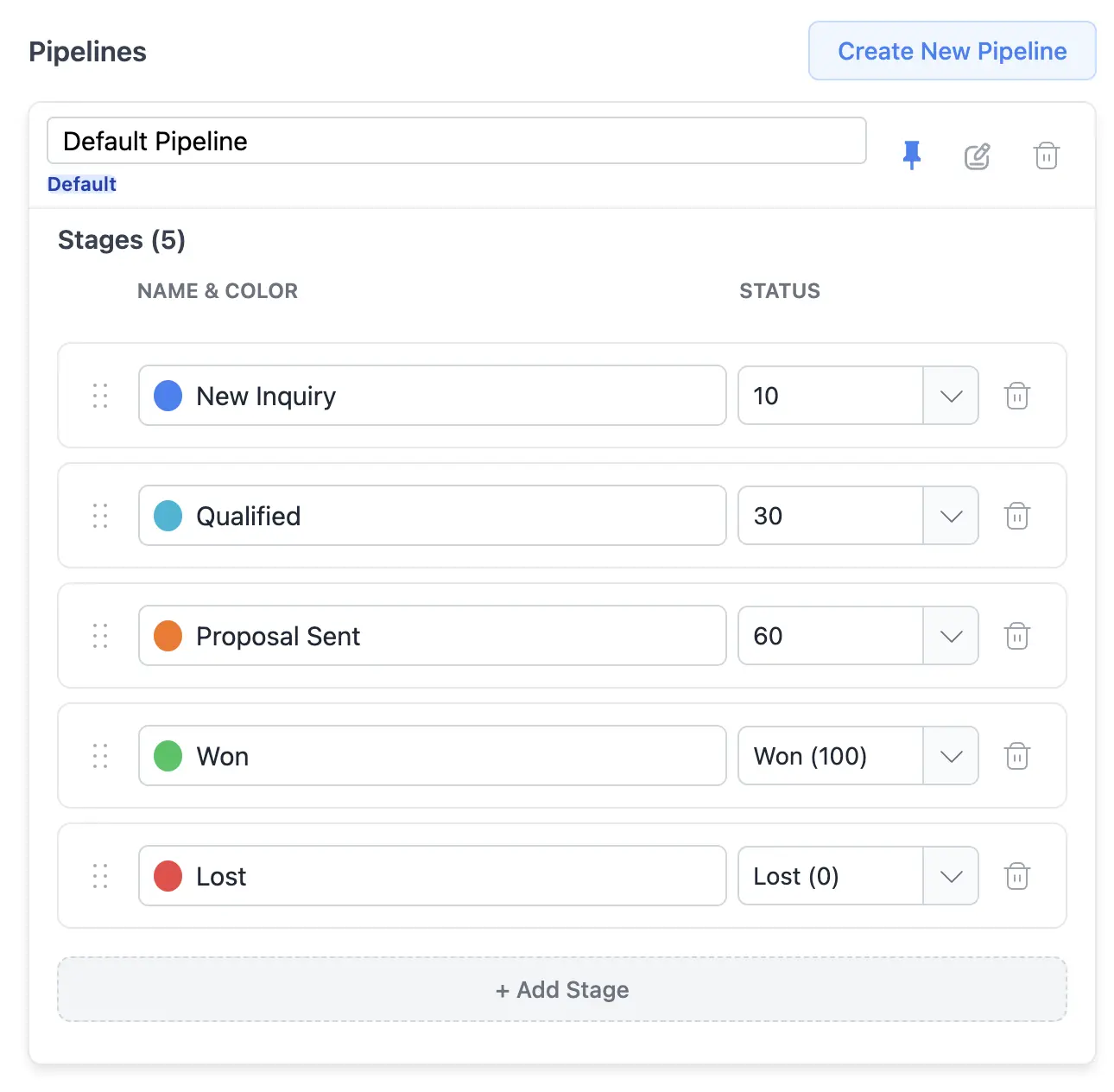
Create or edit a pipeline and define its stages in Pipeline Settings.
A pipeline is a visual board where you track your deals. You can create multiple pipelines for different purposes.
A default pipeline is created for you when you first install the extension. If you are happy with the default setup, you can skip this step.
- Open the CQ Sidebar on WhatsApp Web.
- Navigate to the Settings (gear icon) on the CQ Bar.
- Open Pipeline Settings.
- Click Create New Pipeline or edit the Default Pipeline.
- Choose a name (e.g., “Sales 2026”) and define your stages:
- New Deal
- Interested
- Proposal Sent
- Closed Won
Step 2: Define Stage Probabilities
Each stage in your pipeline can be assigned a “Win Probability” (0-100%).
- Why this matters: The Insights view uses these percentages to calculate your Forecast Value.
- Example: A $1,000 deal in a 10% stage contributes $100 to your forecast, giving you a realistic revenue prediction.
Step 3: Create Your First Deal
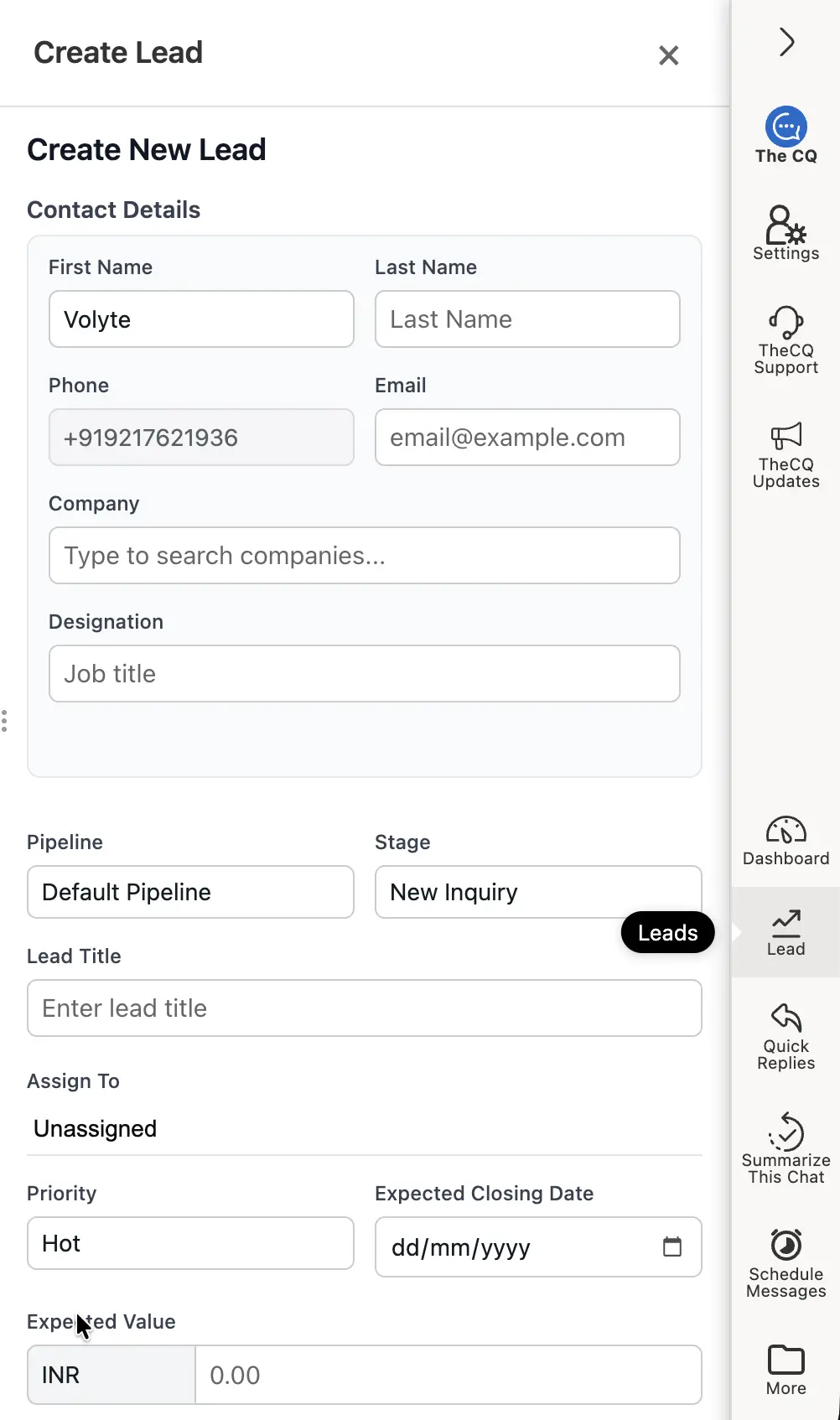
The deal form pre-fills contact details and AI-generated deal information.
Adding a deal to your pipeline is straightforward:
- Open the chat for the contact you want to add.
- Click the Deal icon in the CQ sidebar on the right.
- A deal form will appear with the contact details pre-filled.
- Under the Deal Details section, the AI will analyze the conversation and automatically fill in the deal information.
- Review the details and click the Create Deal button.
Managing Multiple Workflows
Remember, you aren’t limited to just one pipeline. You can manage Sales and Recruitment simultaneously by switching between your custom workflows.