
Deal Detail Panel
A comprehensive guide to managing deal details, activities, tasks, and linked people.
The Deal Detail Panel is where you manage individual relationships. It opens on the right side of your WhatsApp Web whenever you click on a deal from the CQ sidebar or the Deals (Kanban) board.
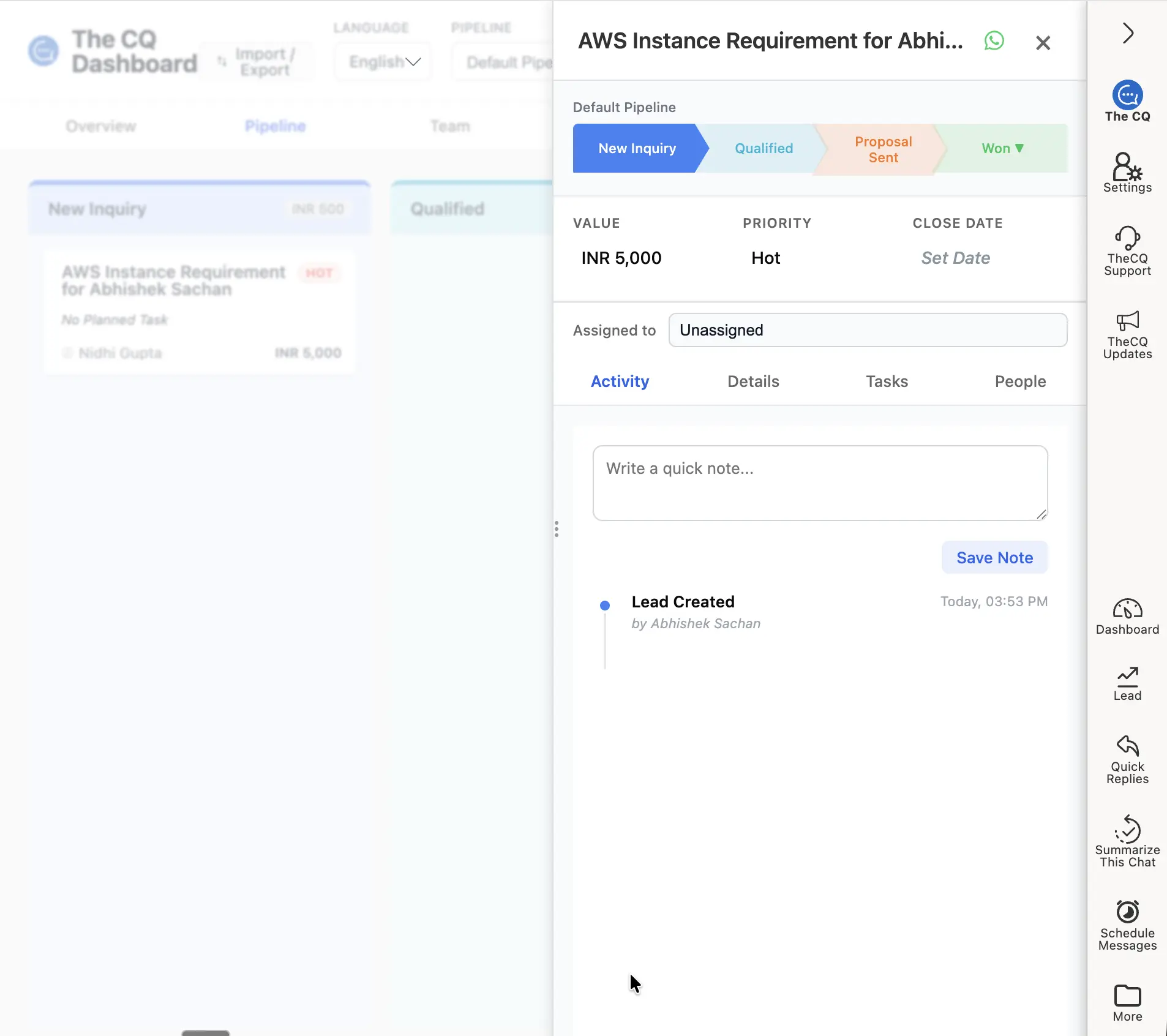
The Deal Detail Panel opens on the right whenever you select a deal.
Top Section: Identity & Stage
At the very top, you’ll see the Deal Name.
- Edit Name: Simply click the name text to edit it. This is useful for renaming a deal from a phone number to a real name or company name.
- Pipeline & Stage: Below the name, you can see which pipeline the deal belongs to and its current stage. You can click to instantly switch the stage from here.
Core Sales Fields
For every deal, we track three critical pieces of data:
- Value: The potential revenue this deal represents.
- Priority: Mark deals as Low, Medium, or High priority to focus your energy.
- Closing Date: Set an expected date for when the deal will be finalized.
Managing the Four Tabs
The bottom half of the panel is divided into four functional tabs:
1. Activity Tab (Audit Trail)
This is your deal history. Every change—from moving to a new stage to updating the value—is automatically recorded here with a timestamp. It serves as a full audit log, so you never have to guess when something changed.
2. Details Tab
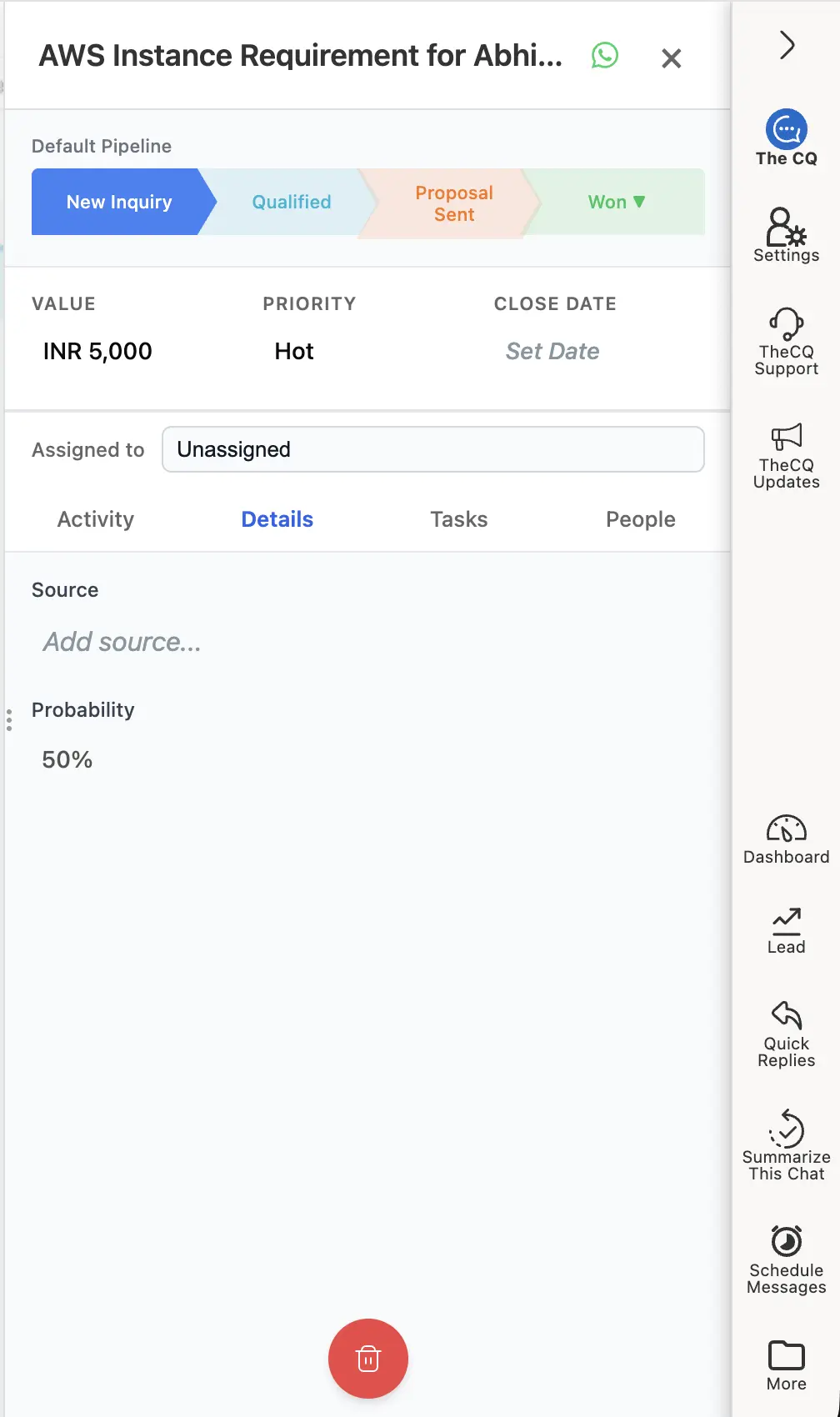
The Details tab holds deal source, probability, and other meta-data.
This tab holds additional meta-data about the deal.
- Deal Source: Where the deal came from (e.g., Website, Instagram).
- Probability: While each stage has a default probability, you can manually override it for a specific deal if you feel it’s more or less likely to close.
3. Tasks Tab
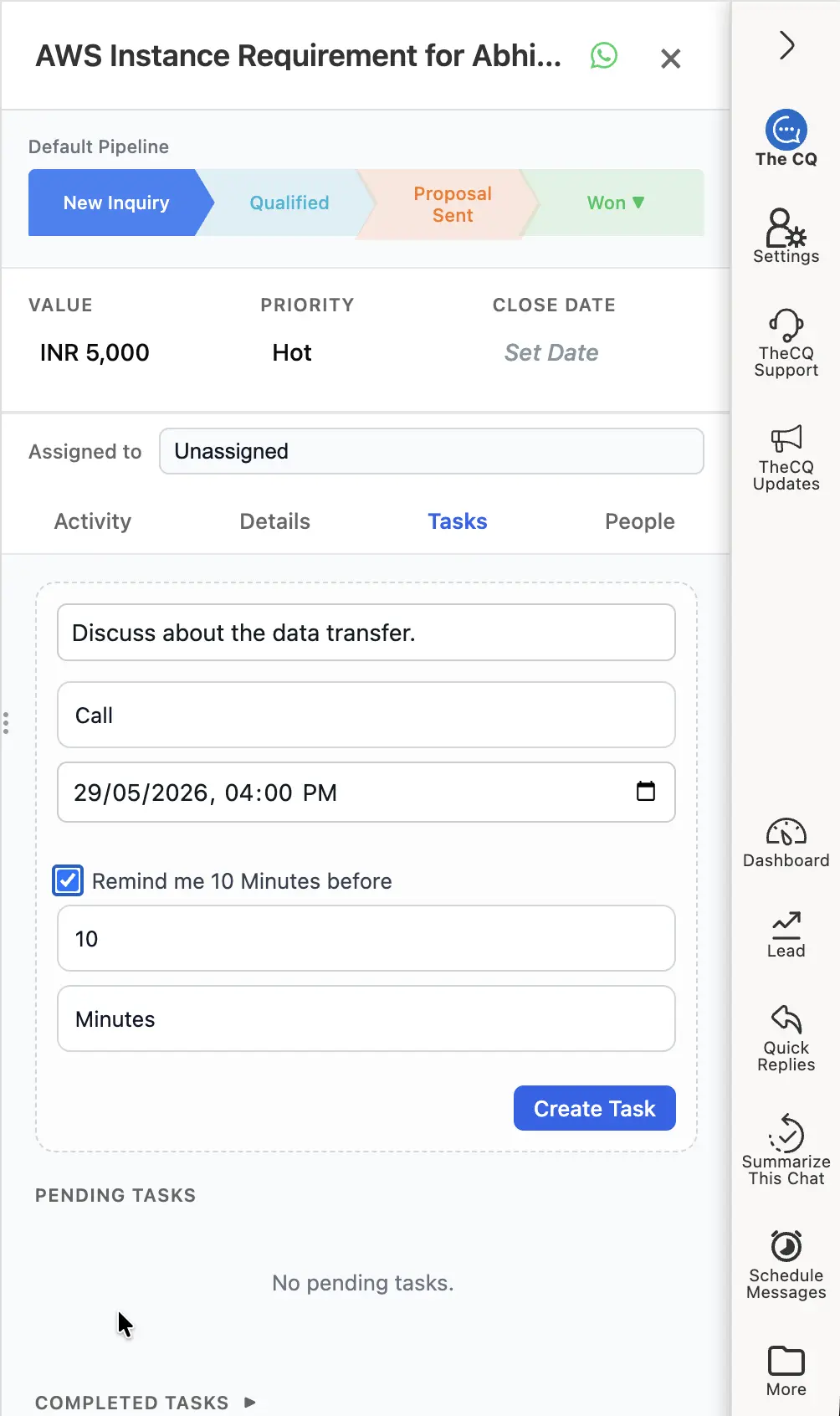
The Tasks tab lists pending and completed follow-ups with due dates and reminders.
Stay on top of your follow-ups.
- View Tasks: See both pending and completed tasks for this specific deal.
- Create Task: Add a new task, set a due date, and even set a reminder to ensure you don’t miss a beat.
4. People Tab (Multi-Contact Linking)
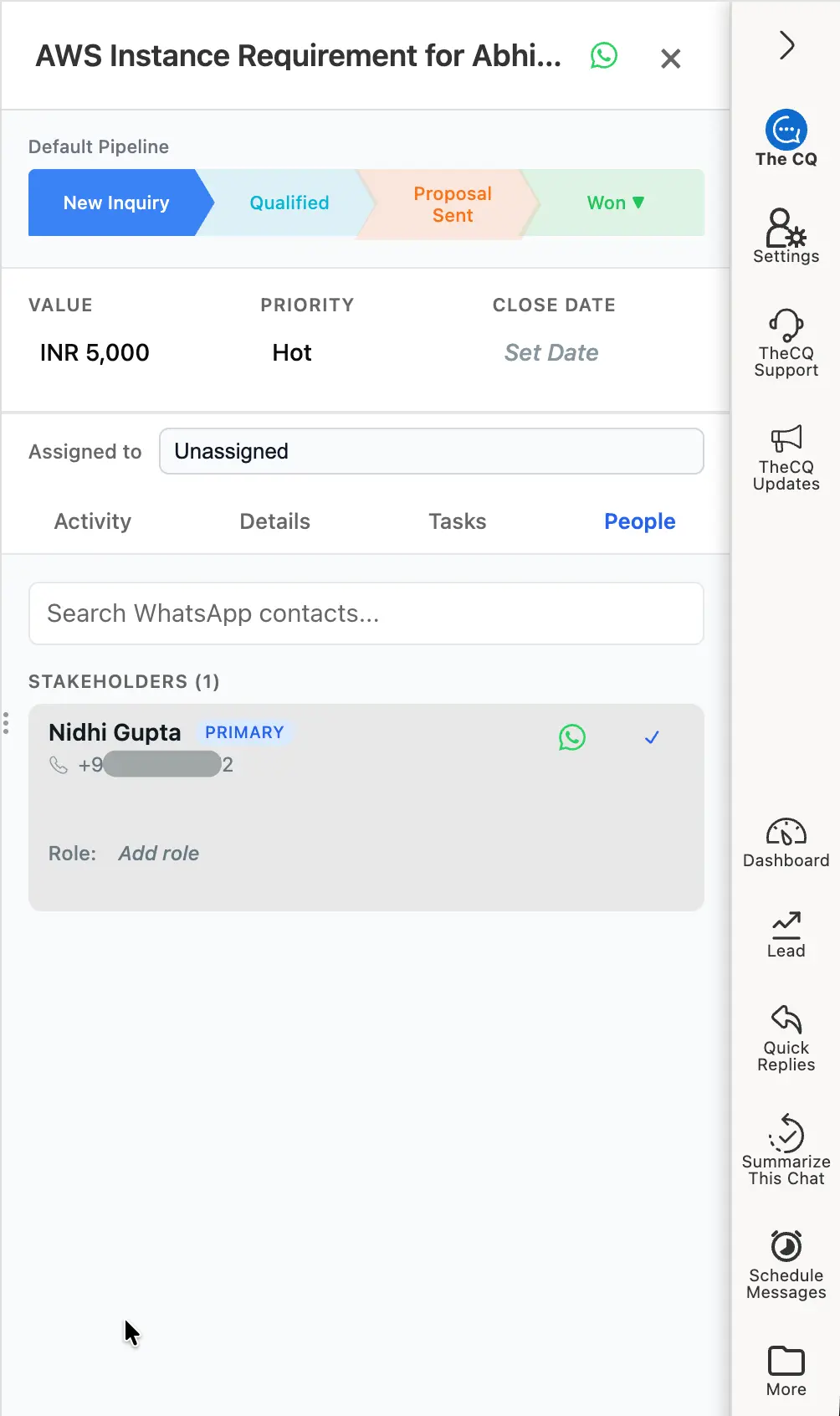
The People tab links multiple contacts and WhatsApp groups to one deal.
Many deals involve more than one person.
- Link Multiple Contacts: You can link a single deal to multiple individual WhatsApp contacts.
- Link Groups: You can also link a WhatsApp Group to a deal.
- Unified View: This ensures that no matter which contact or group you are chatting in, the same deal details are always available in the side panel for quick reference and updates.