
Privacy Controls
Control which AI features can read your WhatsApp chat messages.
The Chat Quotient uses AI to power several features — reply suggestions, chat summaries, and deal analysis. Because these features read your WhatsApp messages, we give you full control over which ones are allowed to do so.
All AI processing is inference-only: your messages are sent to the AI model for analysis and are never stored or seen by anyone at The Chat Quotient.
Accessing Privacy Settings
- Open WhatsApp Web with the CQ extension active.
- Click the Settings (gear icon) in the CQ sidebar.
- Select Privacy from the left-hand menu.
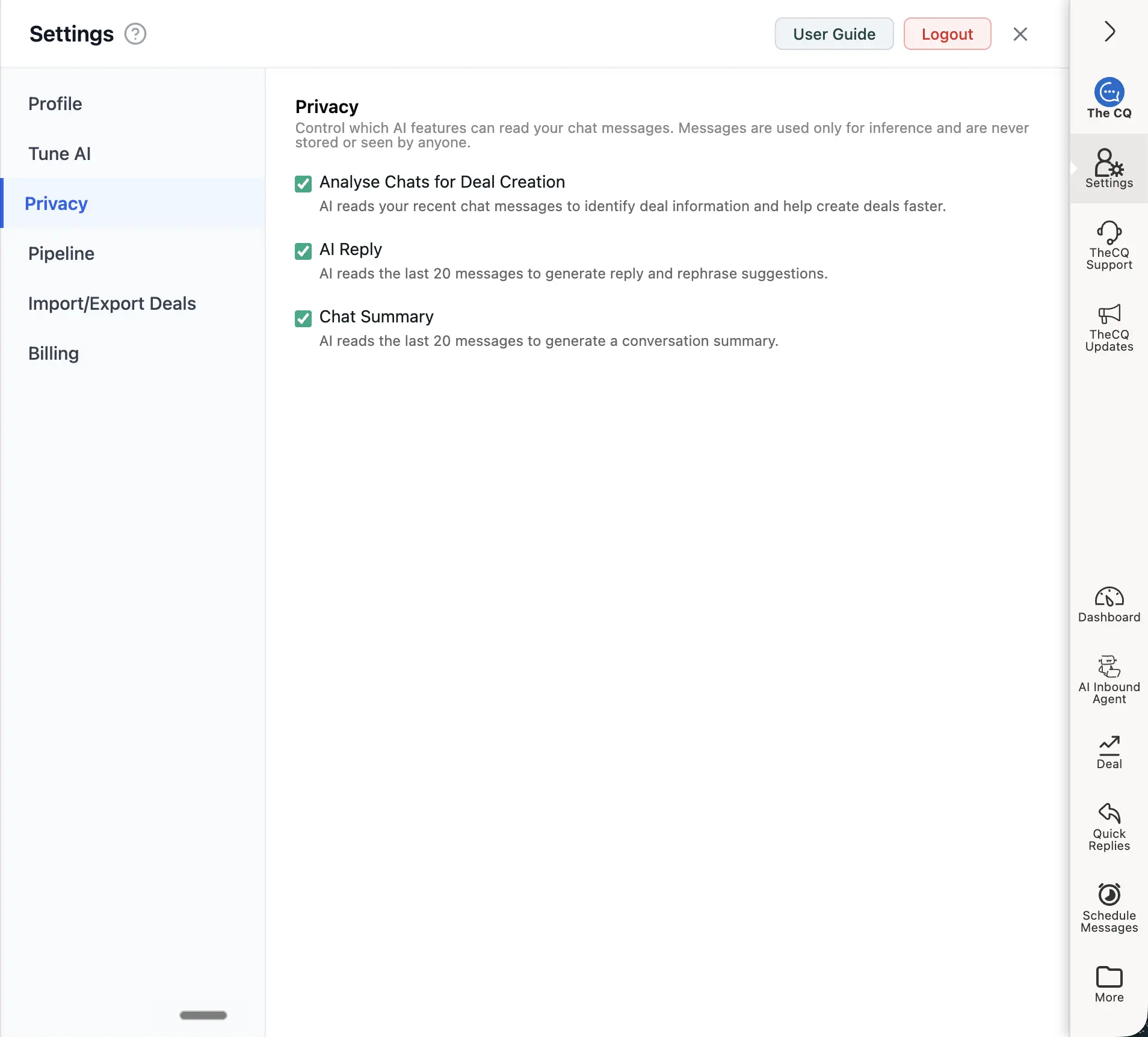
The Privacy panel gives you individual control over each AI feature.
Privacy Options
Analyse Chats for Deal Creation
When enabled, the AI can read your recent chat messages to identify deal-relevant information and help create deals faster.
Disabling this setting will:
- Turn off Bulk Deal Creation — the AI will not be able to analyse chats and create deals automatically.
- Disable automatic AI analysis when creating a single deal from an individual chat — the deal form will open, but the AI will not pre-fill the details.
[!NOTE] You can still create deals manually by filling in the form yourself even when this is disabled.
AI Reply
When enabled, the AI reads the last 20 messages in a chat to generate reply suggestions and rephrase options directly in your message box.
Disabling this setting will:
- Turn off AI Reply Suggestions for you.
- Disable AI reply generation for any AI Inbound Agents you have configured — agents will no longer be able to send AI-generated replies to contacts.
Chat Summary
When enabled, the AI reads the last 20 messages in a chat to generate a conversation summary when you click the summary button on the CQ bar.
Disabling this setting will prevent the Chat Summary button from generating a summary.
Disabling All AI Features
If you want the extension to work without any AI reading your messages, simply uncheck all three options. You can still use non-AI features like Quick Replies, Scheduled Messages, the Deals pipeline, and contact management.
Re-enabling a Feature
All settings can be re-enabled at any time by returning to Settings → Privacy and checking the relevant box.