
Bulk Deal Creation from Chats
Use AI to automatically analyse multiple WhatsApp chats and create deals in your pipeline in one go.
The Bulk Deal Creation feature lets you select multiple WhatsApp chats at once and have The Chat Quotient’s AI automatically analyse them, extract deal information, and add the deals to the appropriate stages in your pipeline — all in a single click.
Opening the Bulk Deal Creation Panel
- In your WhatsApp Web sidebar, click the Deal icon in the CQ bar.
- The Deals panel opens, defaulting to the Deals (Kanban) view.
- At the top of the panel, click the Create Deal button — this opens the Bulk Deal Creation form.
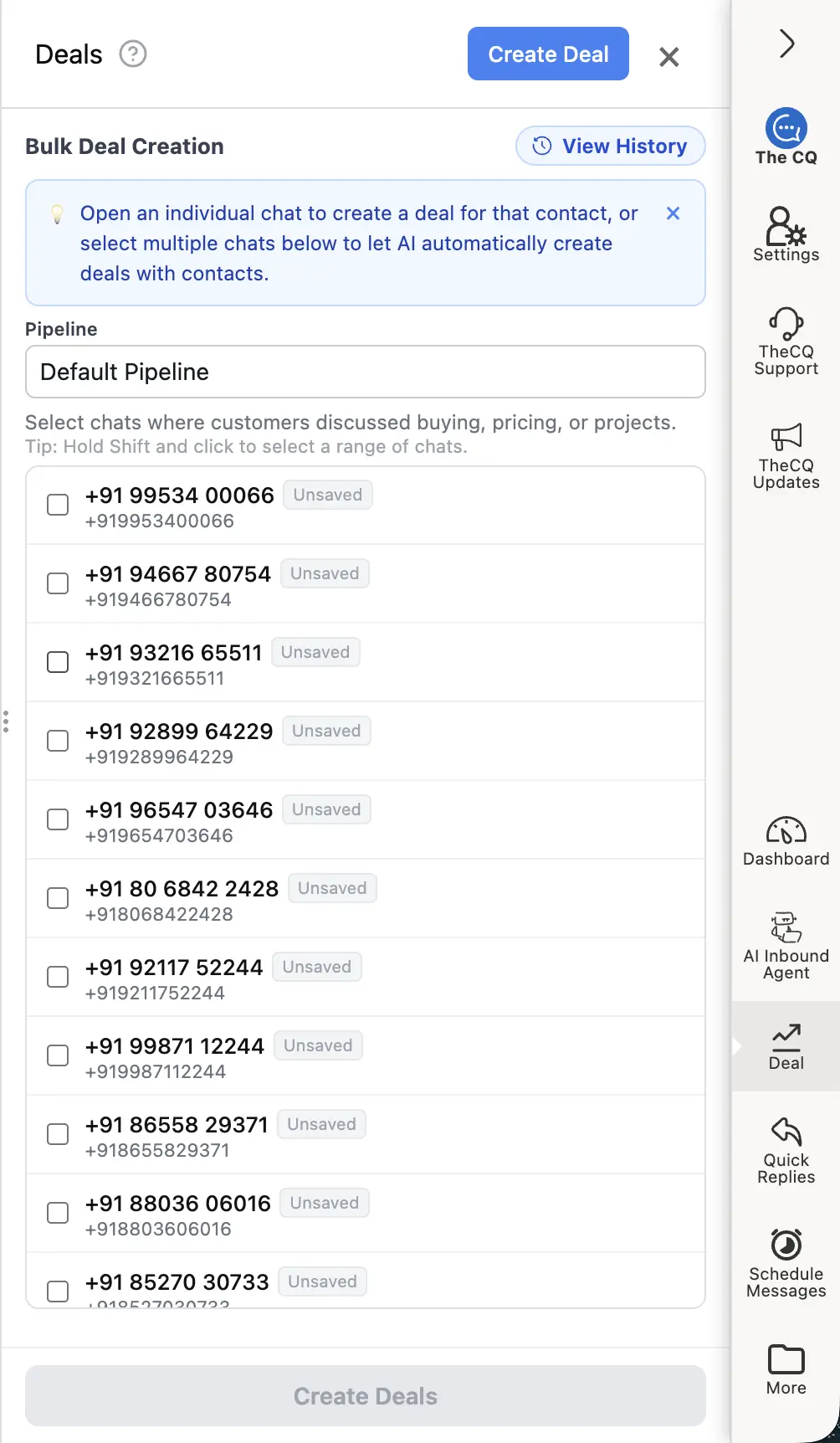
The Bulk Deal Creation panel lets you select a pipeline and choose which chats to analyse.
Step-by-Step: Creating Deals in Bulk
Step 1 — Select a Pipeline
At the top of the form, use the Pipeline dropdown to choose which pipeline the new deals should be added to (e.g., “Default Pipeline”, “Sales 2026”). The AI will place each deal into the most suitable stage within that pipeline.
Step 2 — Select Chats
A list of your recent WhatsApp chats is displayed below the pipeline selector.
- Check the box next to each chat where a potential deal was discussed — pricing enquiries, project scoping, purchase intent, and similar conversations are ideal candidates.
- Shift + Click to quickly select a range of consecutive chats.
- You can select as many or as few chats as you like before proceeding.
[!TIP] Focus on chats where the customer explicitly mentioned buying, pricing, or a specific project. Chats with no relevant messages will be skipped automatically.
Step 3 — Click “Create Deals”
Once you are happy with your selection, click the Create Deals button at the bottom of the panel.
The AI model will:
- Read the recent messages in each selected chat.
- Identify deal-relevant information (contact name, deal value, stage, source, etc.).
- Create a deal for each qualifying chat and place it in the appropriate pipeline stage.
[!IMPORTANT] This feature requires the Analyse Chats for Deal Creation privacy setting to be enabled. If it is turned off, the AI analysis is disabled and bulk creation will not work. See Privacy Controls for details.
Viewing the Results
After the process completes, a Deal Creation Results screen appears, showing:
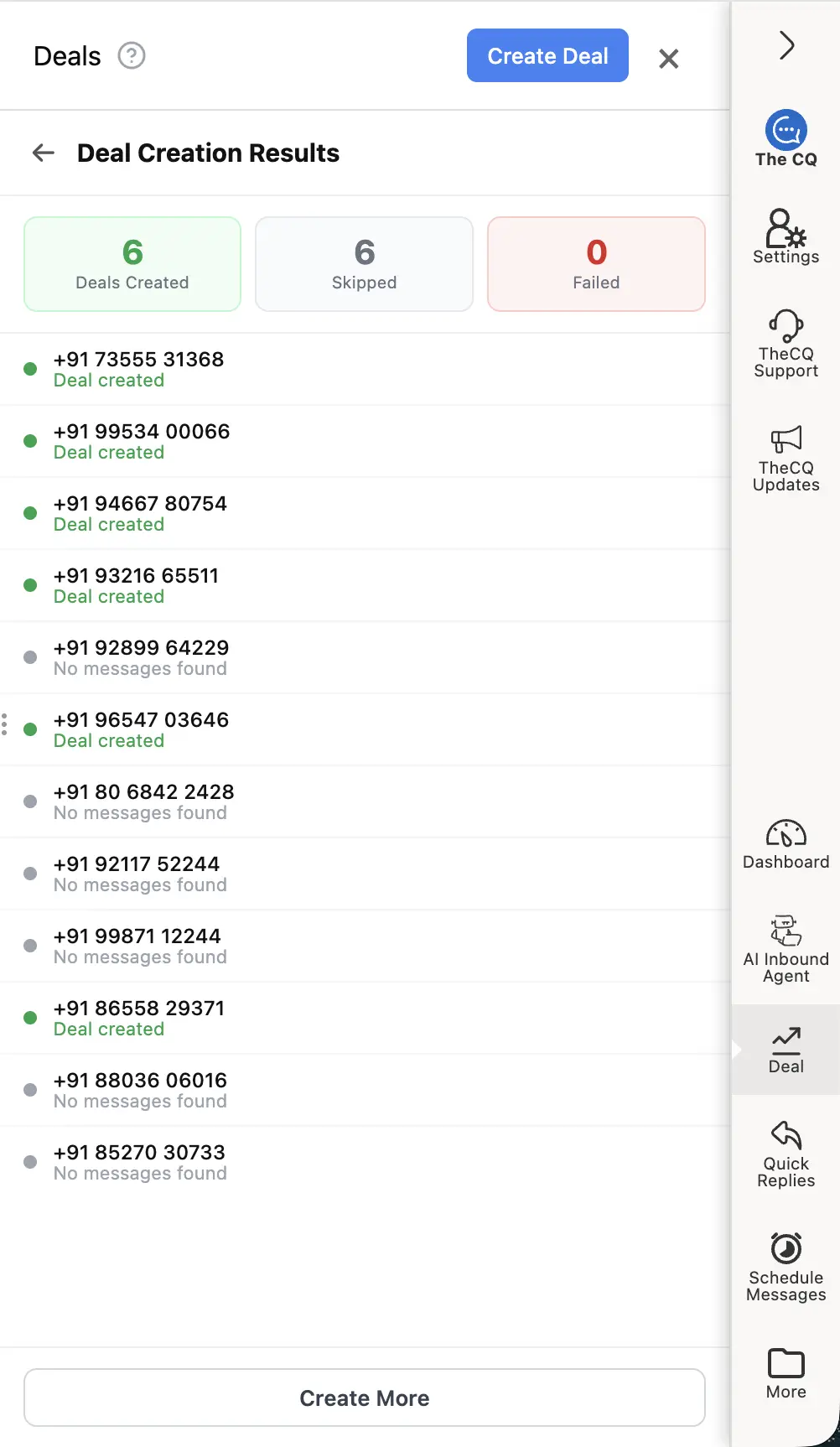
The results screen clearly shows how many deals were created, skipped, or failed.
| Status | Meaning |
|---|---|
| Deals Created (green) | A deal was successfully created and added to the pipeline. |
| Skipped (grey) | The chat had no messages for the AI to analyse, so it was skipped. |
| Failed (red) | An error occurred while creating the deal. |
Each chat in the list is shown with its outcome. Chats labelled “No messages found” were skipped because there was no content to analyse.
When you are done reviewing the results, click Create More to return to the selection form and run another batch.
Viewing Creation History
The CQ extension stores a history of all your bulk deal creation sessions locally in your browser. To review past sessions:
- Open the Bulk Deal Creation panel (click Create Deal from the Deals panel).
- Click the View History button in the top-right corner of the panel.
- Browse past sessions to see which chats were processed and what outcomes were recorded.
[!NOTE] History is stored locally in your browser. Clearing your browser data or switching devices will remove the history.
AI Quota Usage
Each bulk deal creation session consumes your AI Deals Analysis quota. The number of quota units used is equal to the number of chats that were successfully analysed (created or attempted — not skipped).
To check your remaining quota, go to Settings → Billing inside the extension. If you need a higher quota, consider upgrading your plan. See Understanding Your Plan for details.
Viewing Created Deals
After bulk creation, you can immediately see your new deals in the Deals (Kanban) view. Switch to the Deals (Kanban) tab inside the Deals panel (or click the Deal icon in the CQ bar) and they will appear as cards in the appropriate pipeline stages, ready for follow-up.